 SAFE
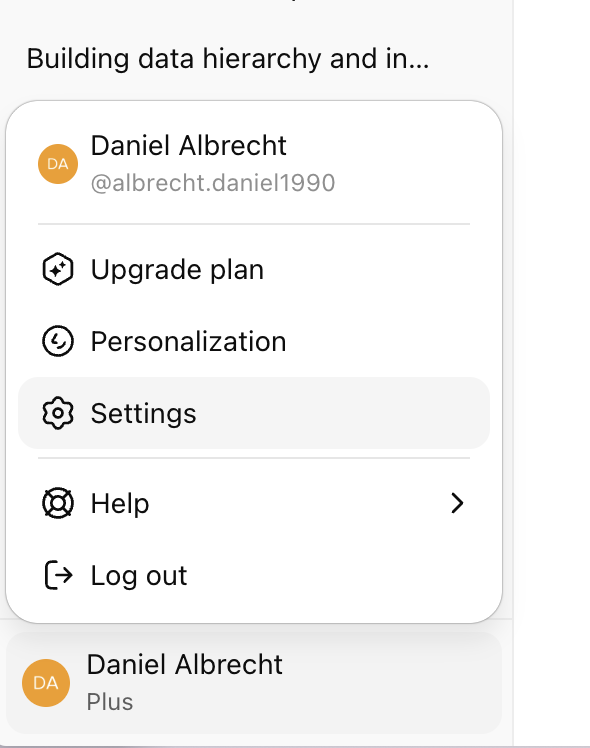
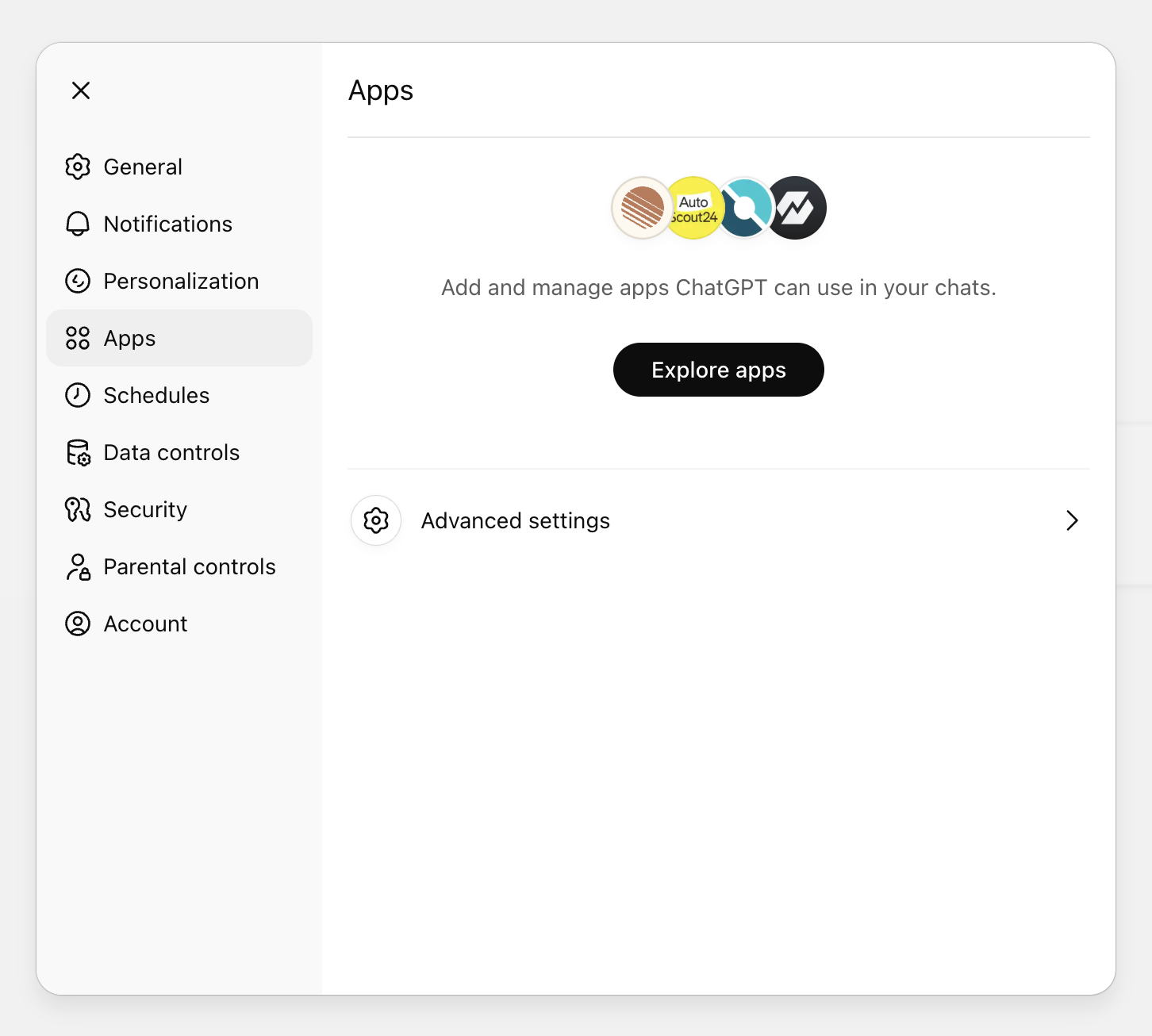
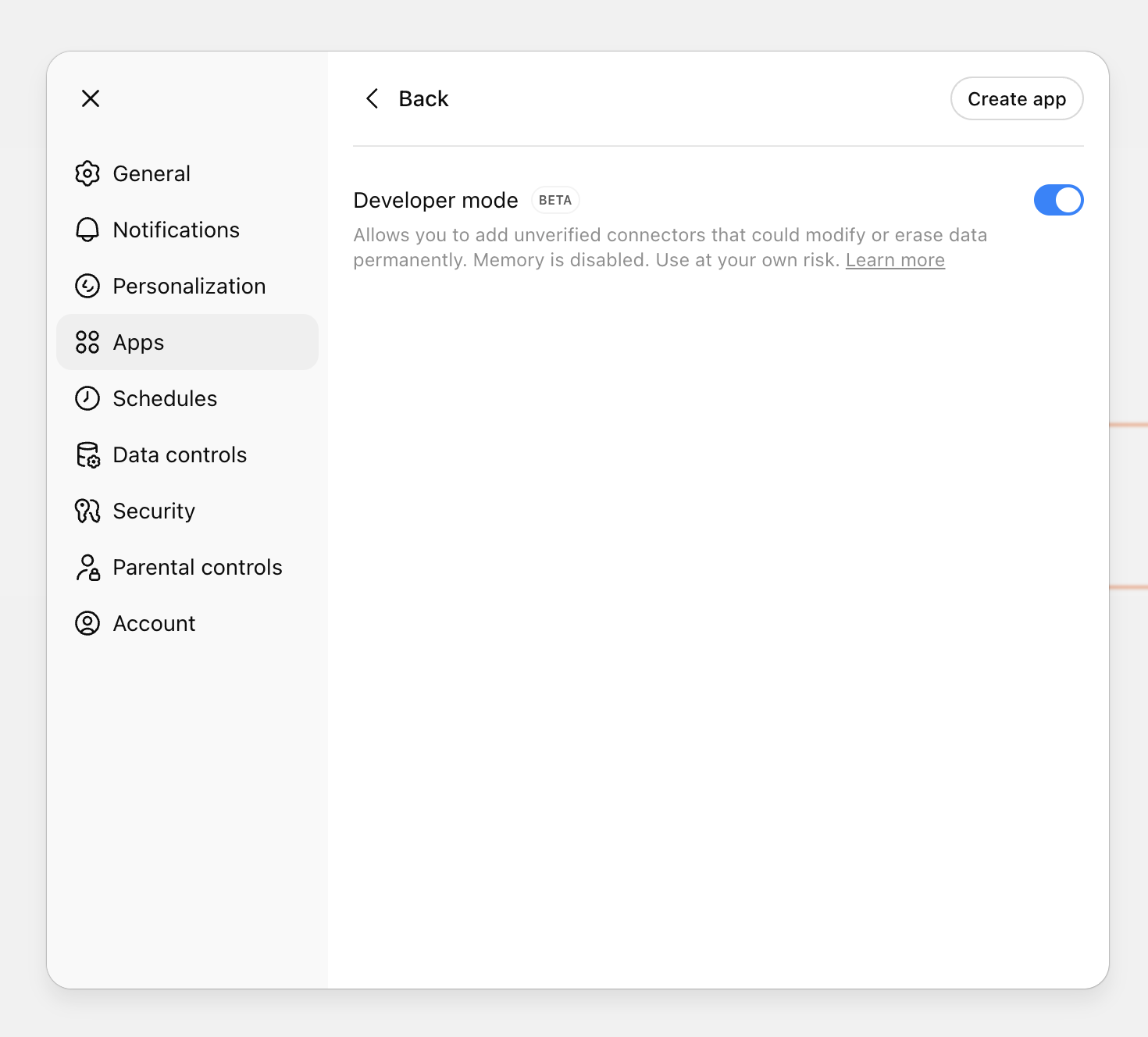
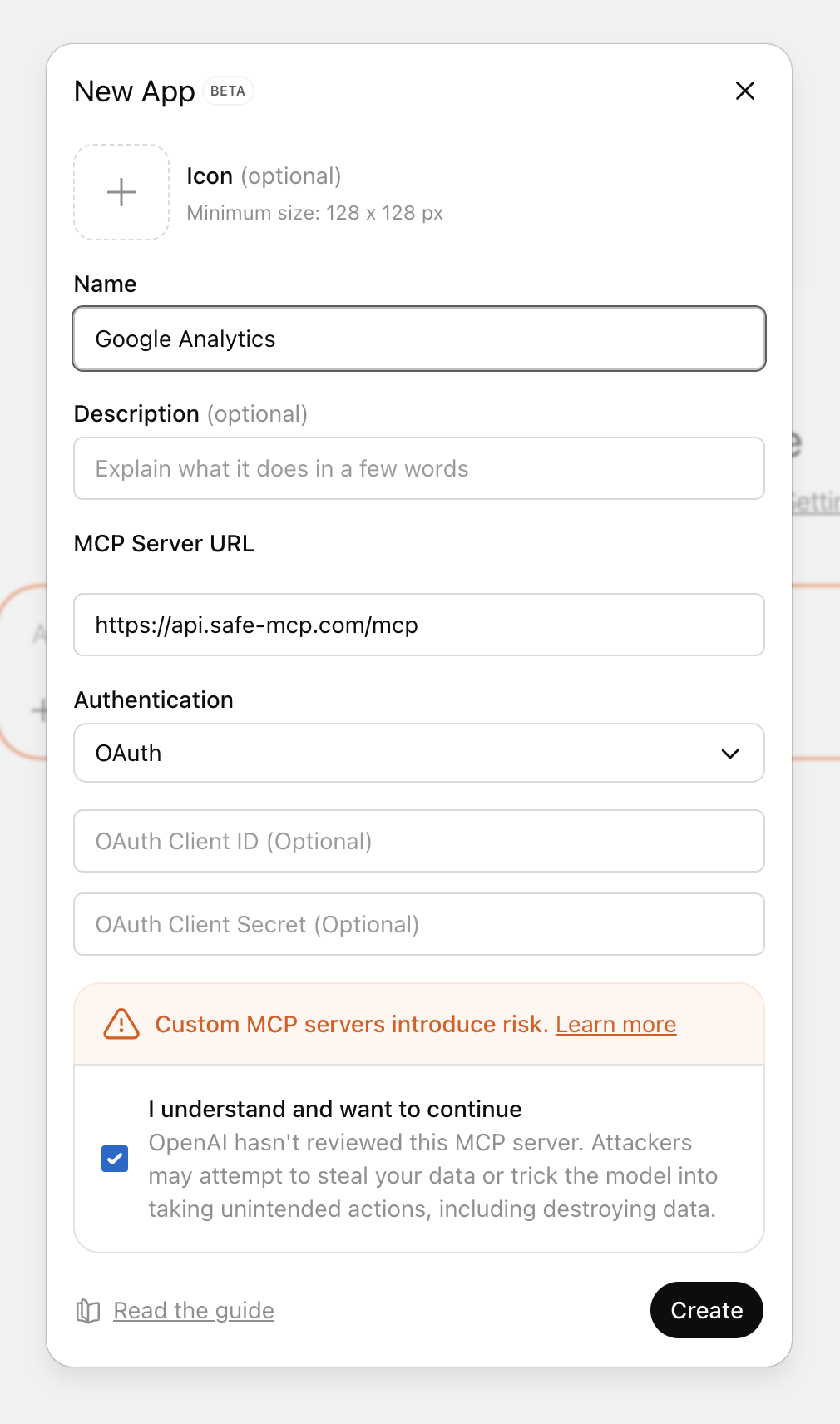
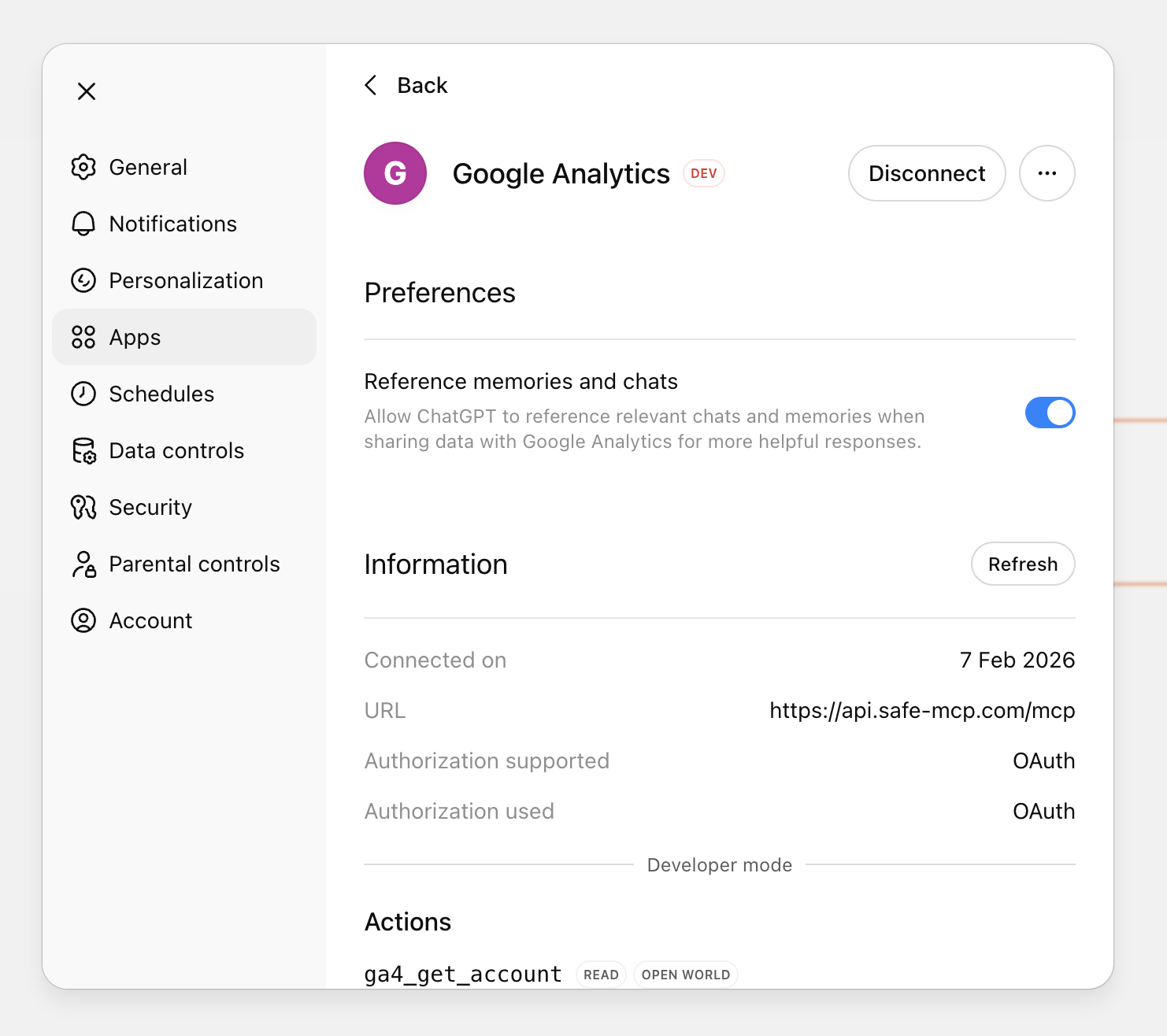
SAFE - Open ChatGPT settings and enable developer → app mode.
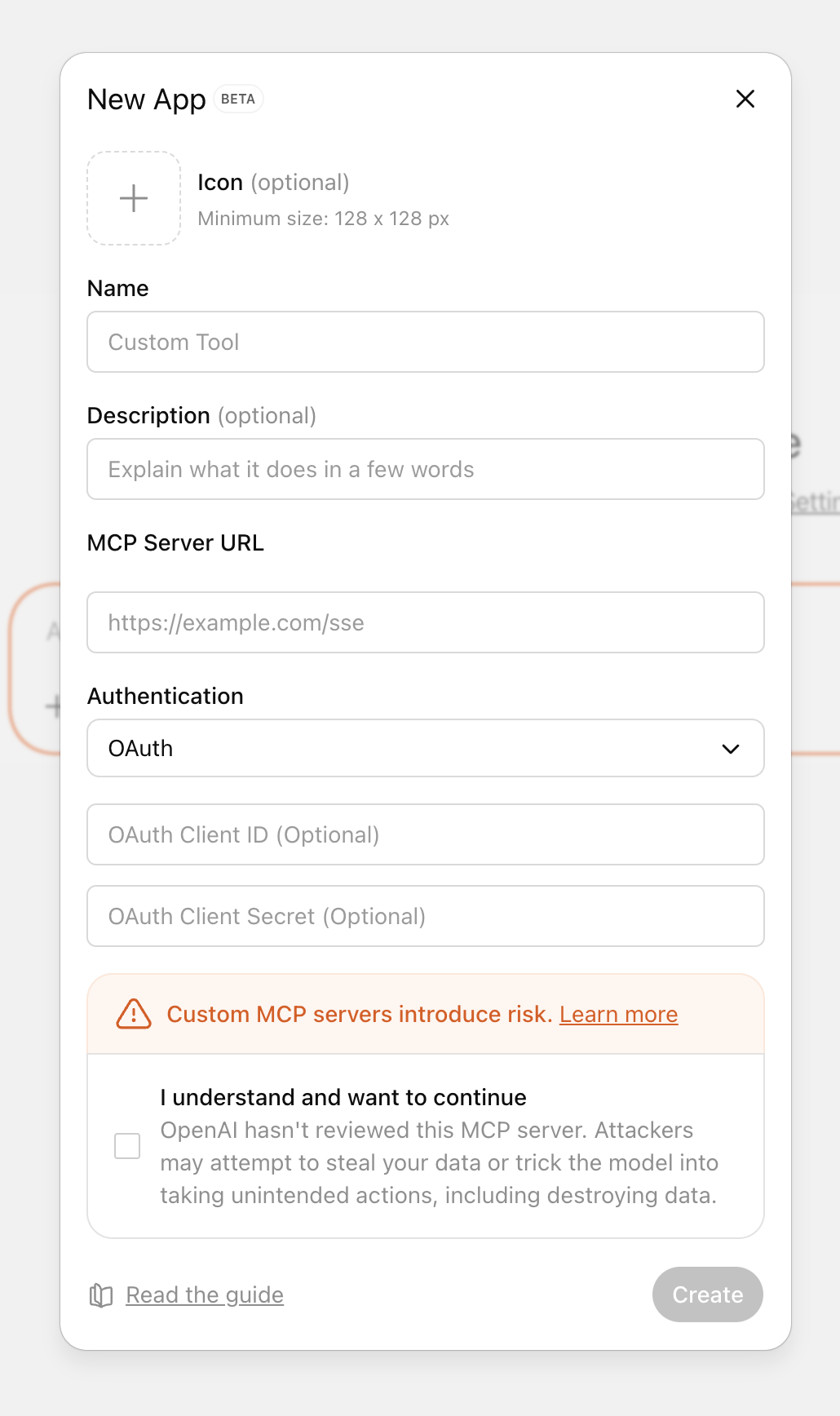
- Create a new app → choose MCP server connection.
- Copy the MCP server URL below and paste it in the URL field.
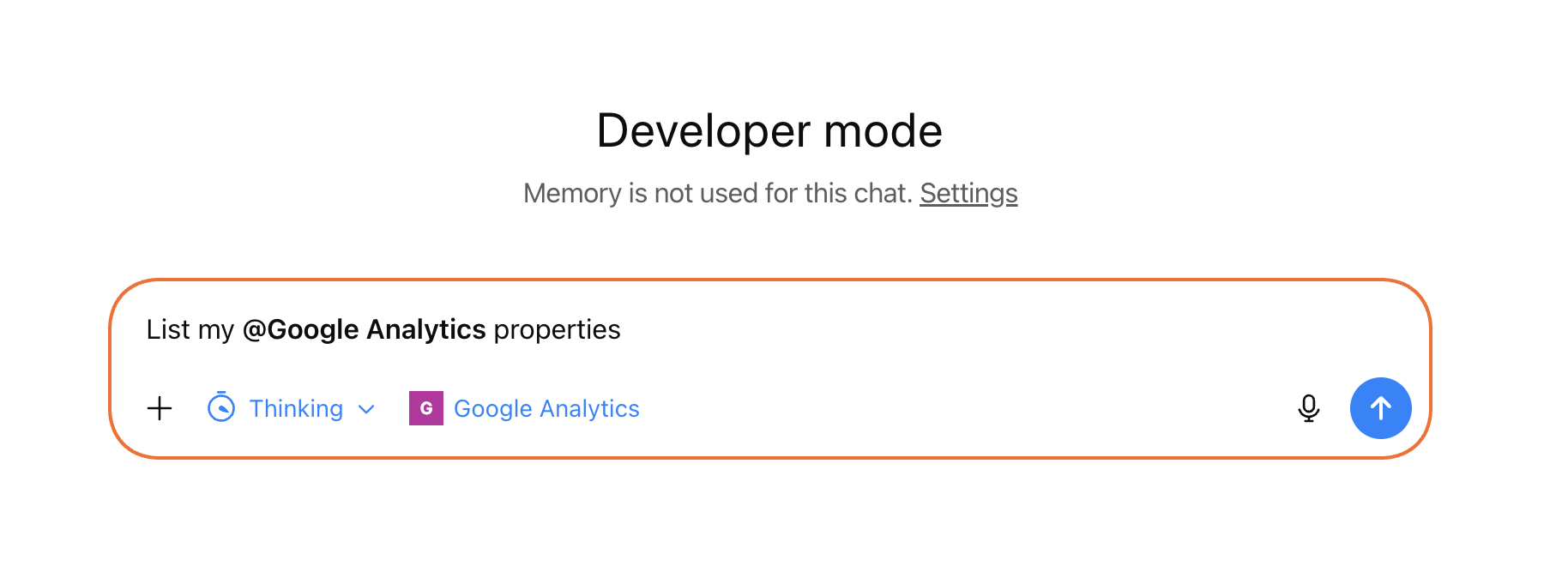
- Save and run your first query to validate connection.
Screenshots for each setup step:
Strategic prompt pack you can use now
Use these prompts to turn Google Analytics data into decisions, not just charts.
- SEO growth diagnosis: “Analyze organic sessions, engaged sessions, and conversion rate for the last 8 weeks by landing page. Highlight pages with traffic growth but conversion decline. Give the top 5 pages to optimize first and why.”
- Landing page optimization priorities: “List the top 20 landing pages by sessions. For each page, show engagement rate and conversion rate. Rank the 5 worst pages by business impact and suggest one test idea per page.”
- Weekly executive reporting: “Build a weekly report for last week vs prior week with sessions, users, conversion rate, revenue, and top channel movers. Add a short narrative: what changed, why it likely changed, and 3 actions for this week.”
- Current CAC estimate: “Using paid channels only, calculate current CAC for the last 30 days by channel and campaign. Show spend, conversions, CAC, and trend vs the previous 30 days.”
- Worst spending campaigns: “List campaigns with the highest spend and weakest efficiency in the last 30 days. Flag the worst 10 by spend-to-conversion outcome, and recommend pause, fix, or scale decisions with reason.”
Start with Safe MCP
If you need fast, reliable Google Analytics answers inside ChatGPT or Claude, Safe MCP gives you a direct path from question to action.