Safe MCP Logo safe-mcp
Sign out

Account Dashboard

Manage your subscription, API access, and integrations.

Sign in

Use Google to link your Google Analytics access.

Sign in with Google

Subscription

Loading
PayPal Invoices

Recent Invoices

Google Connection

Checking...
Connected Properties
Loading Google property cache...
Reconnect Google

Search Console

Checking...
Loading Search Console site cache...
Reconnect Google with Search Console

Bing Webmaster

Checking...
Loading Bing site cache...

Client Setup

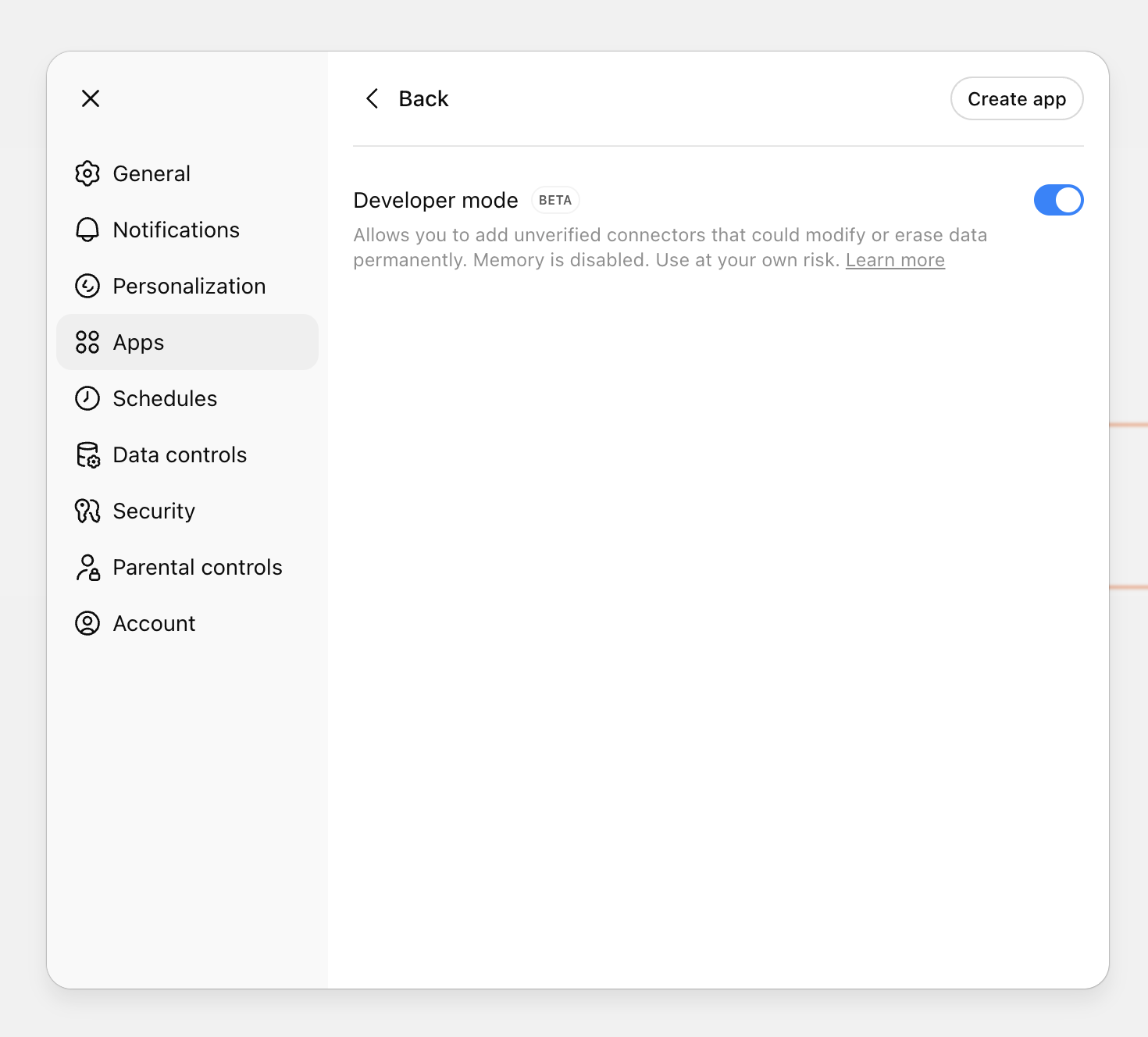
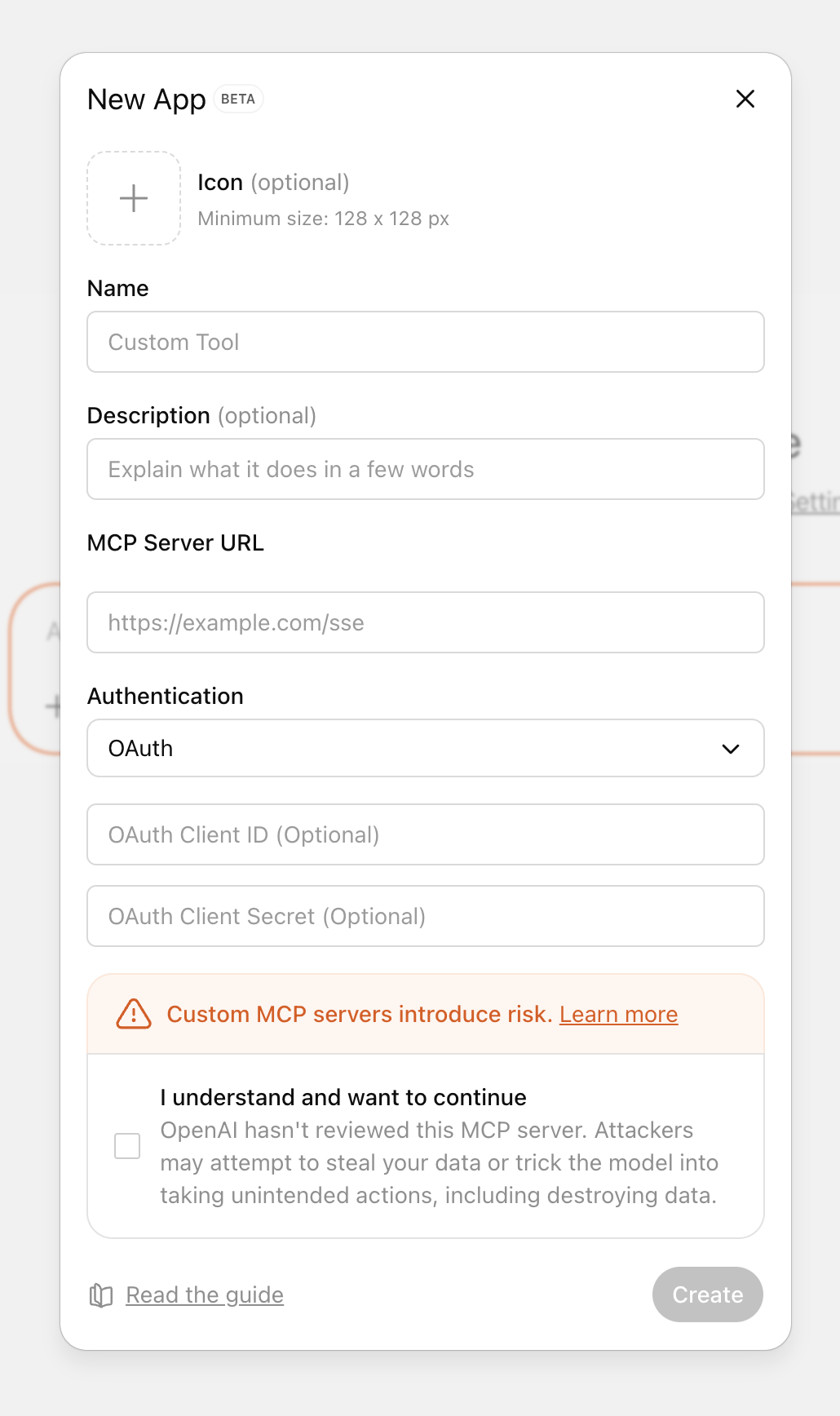
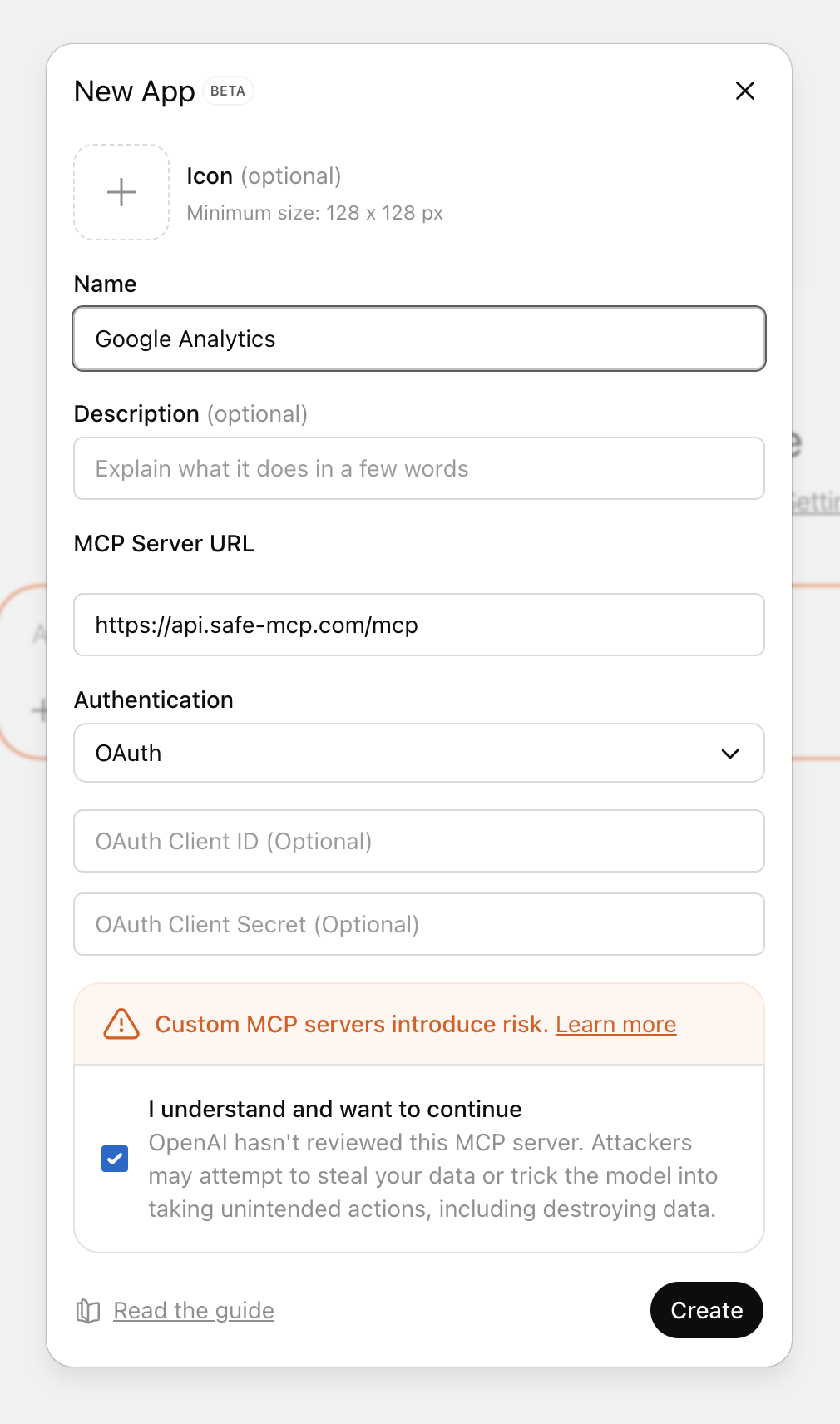
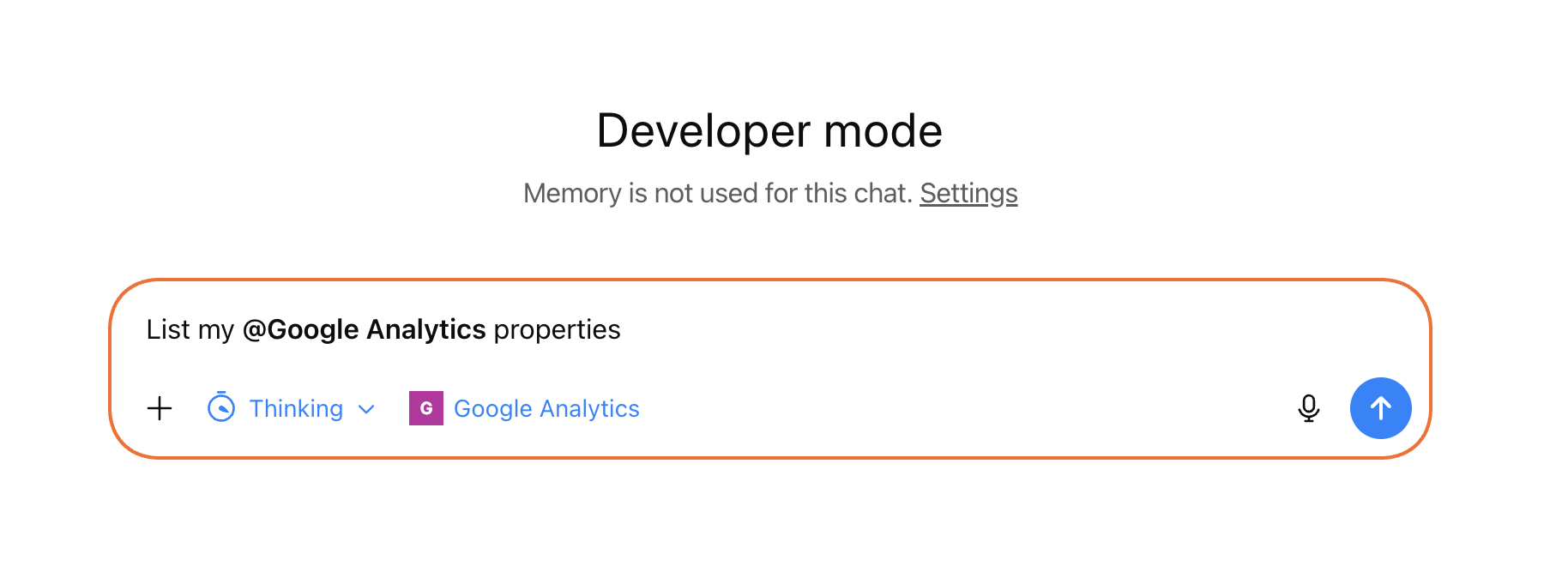
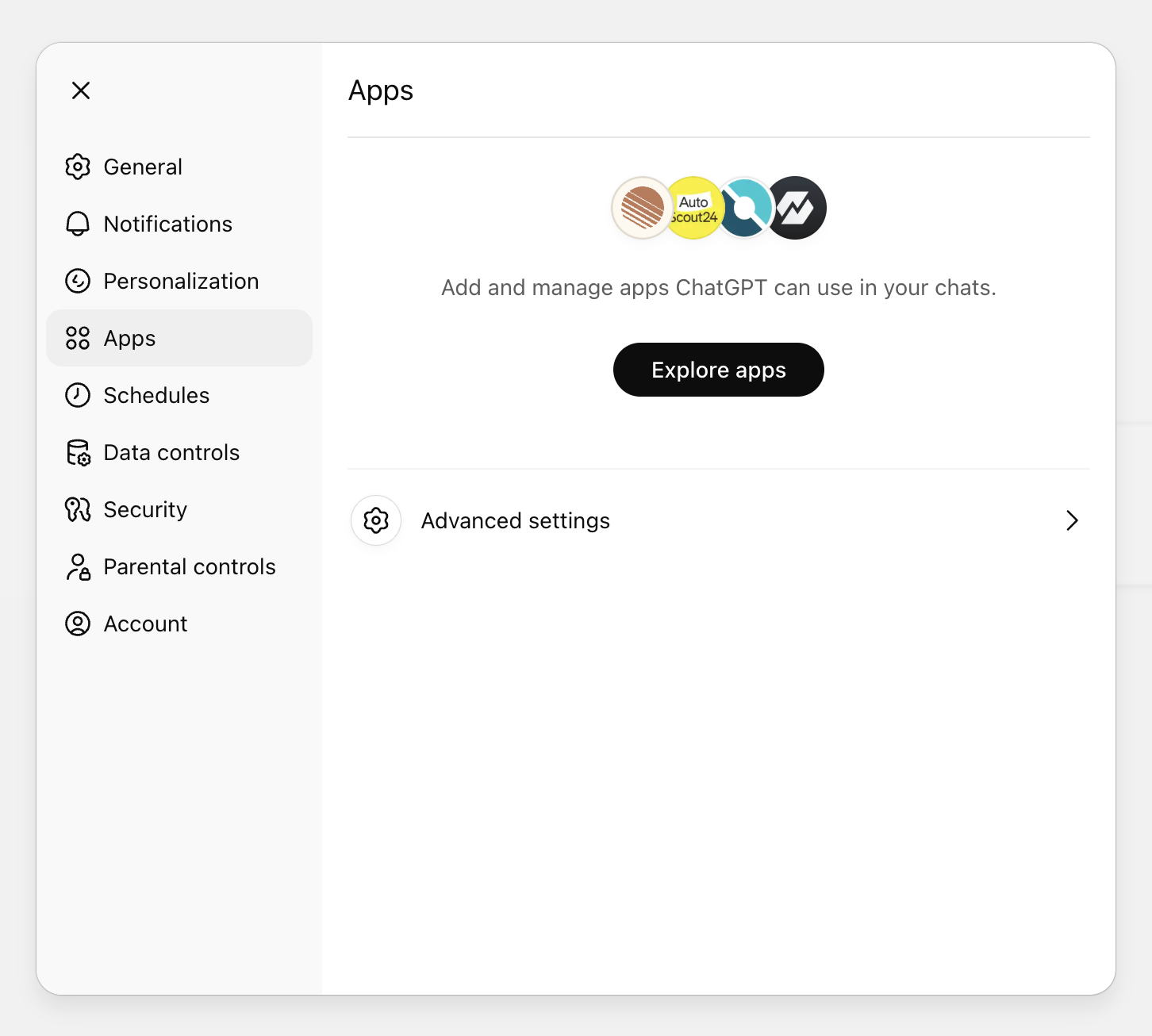
Enable Developer mode (Settings > Apps & Connectors > Advanced settings), then go to Settings > Apps > Create App> paste https://api.safe-mcp.com/mcp URL.
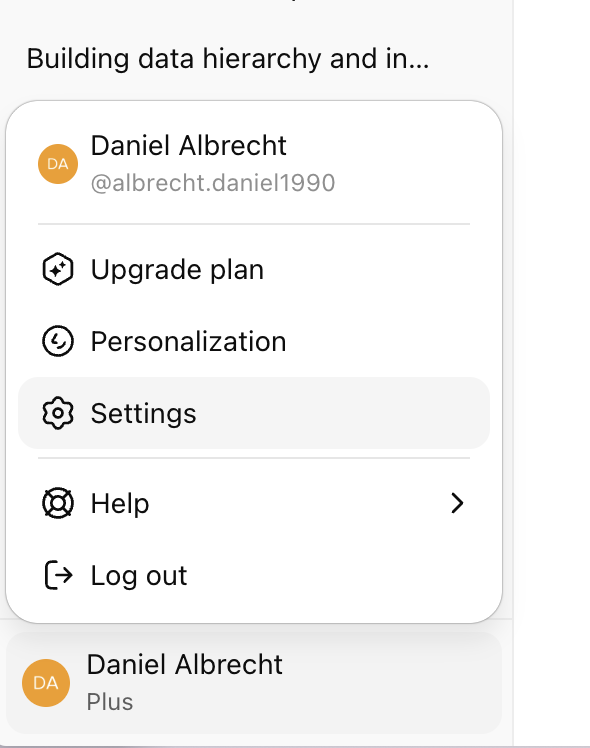
Step 1: Open ChatGPT advanced app settings.
Step 1: Open ChatGPT settings.
Step 2: Go to ChatGPT Apps settings.
Step 2: Go to ChatGPT Apps settings > Advanced settings.
Step 3: Choose Create App.
Step 3: Activate developer mode and choose Create App.
Step 4: Enter the MCP server URL from your dashboard.
Step 5: Save the app configuration.
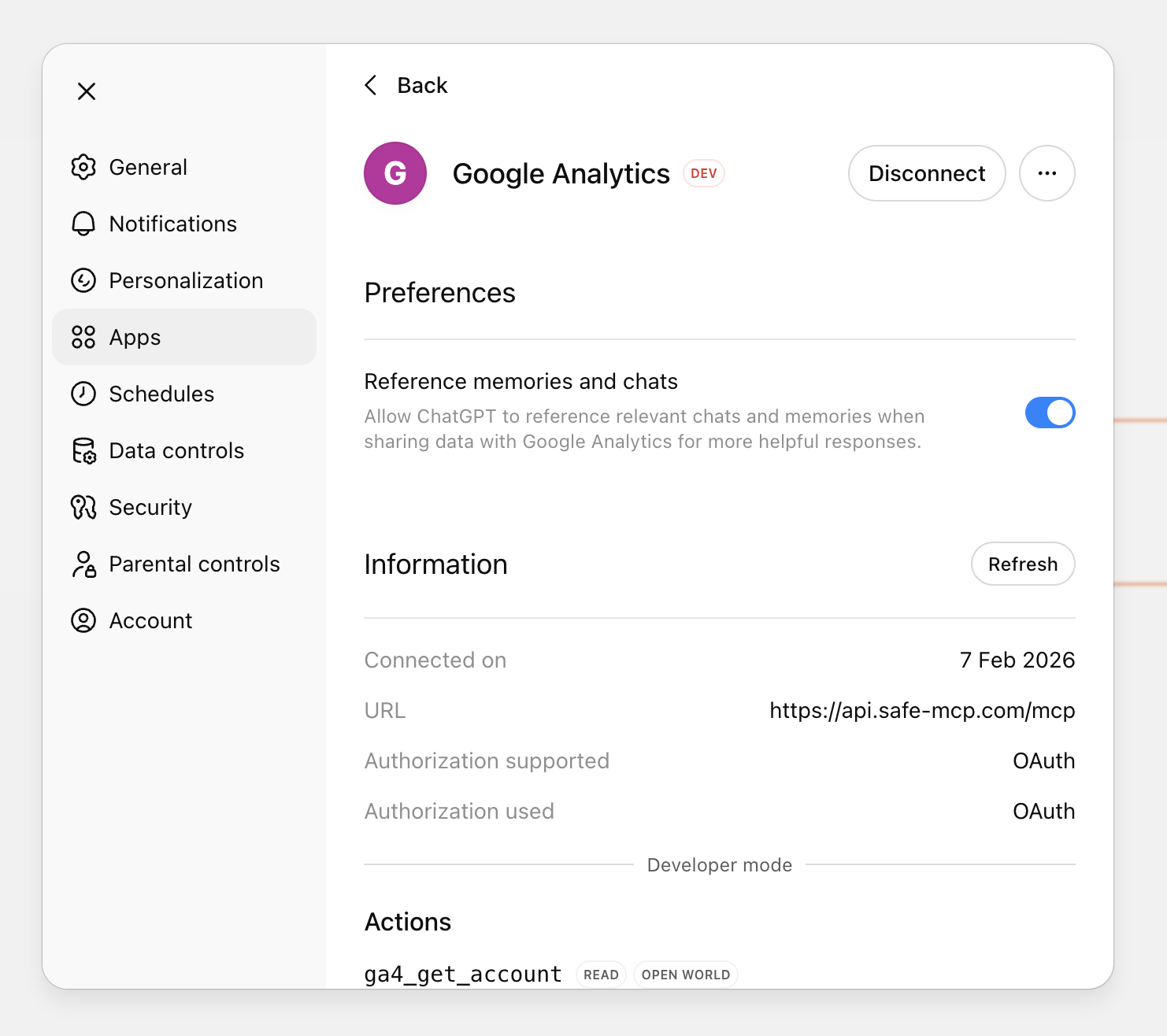
Step 6: Confirm the app is available in ChatGPT.
Step 7: Start using the connected Safe MCP app in ChatGPT.

Add this to your claude_desktop_config.json:

Use the same mcp-remote bridge setup for Copilot stdio clients:

Generic mcp-remote configuration:

Keep your API key private and do not share these configs. The env block now contains your live API key. If you believe your key is exposed, rotate it here or contact support.

API Access

Keep this key private. Do not share your config files.

© 2026 Safe MCP. All rights reserved. Not affiliated with Google, Google Analytics, Bing, or Microsoft.
Manage cookie preferences Privacy Imprint Support